


.COM Domains for $7.99 – Plus $1 Credit for Every 2 with Email
30.10.2026
DNS Management is crucial for the proper functioning of a website and the seamless operation of email systems.
DNS (Domain Name System) records determine which IP address a domain name points to, which email servers are used, and many other technical details.
In this article, we will explain step by step how to add a CNAME record.
A CNAME (Canonical Name) record allows you to redirect one domain name to another domain name.
For example,
To redirect www.ataktestdomain.click directly to ataktestdomain.click, a CNAME record is used.
Unlike an A record, it redirects to another domain name, not an IP address.
Below, we have compiled example CNAME records suitable for different scenarios, both in a table and with explanations:
| Name | Record | Description |
| www | ataktestdomain.click | Redirects the www address to the main domain. |
| shop | shops.myshopify.com | Connects the shop subdomain to the Shopify store. |
| support | support.zendesk.com | Moves the support page to Zendesk. |
| ghs.googlehosted.com | Redirects to the mail service of Google Workspace. |
Note:
Before adding a CNAME record, make sure that your domain's DNS management is handled by Atak Domain.
If the DNS management is with a different provider (e.g., Cloudflare, Natro, GoDaddy, etc.), you need to enter the CNAME record through that platform.
Otherwise, the changes you make will not be effective.
By following the steps below, you can easily add, edit, or delete your CNAME record:
1- Log in to the Customer Control Panel
Log in to the Atak Domain customer control panel.

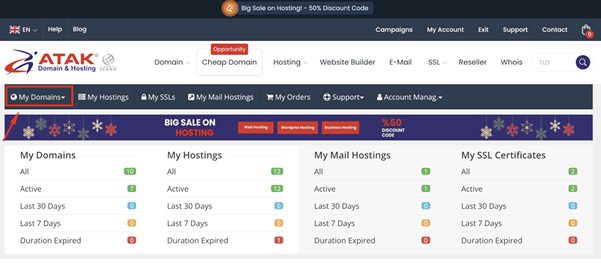
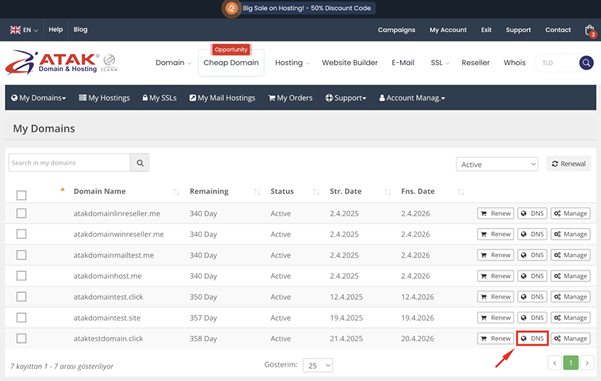
2- Select Your Domain Account
In the control panel, click on the "My Domains" button.
3. Add a New CNAME Record
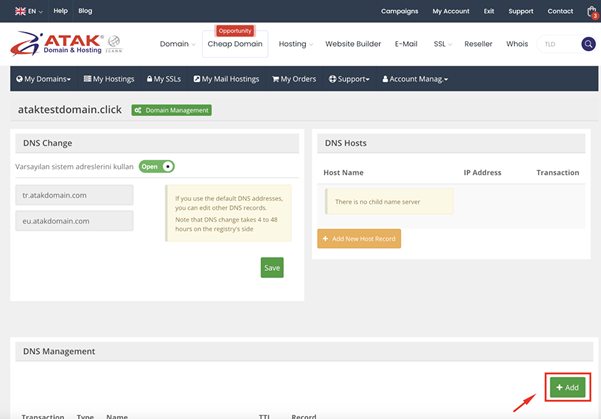
Note: One of the most commonly used CNAME records is the www redirect.
This process allows the www.domainaddress.com address to be directly redirected to domainaddress.com instead of adding two different A records.
In this case, the www subdomain is directly redirected to ornekdomain.com.
Example:
In the opened window, fill in the following fields:
After filling in all the information, click the "Save" button.
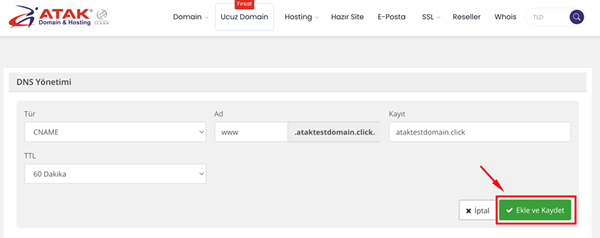
Congratulations! You have successfully added your CNAME record.
DNS changes usually take a few hours to propagate worldwide.