How to Connect an FTP Account in Plesk Panel?
This guide connects FileZilla, a free FTP client, to your Plesk hosting account so you can upload and edit your website files on the server.
What you need to connect to FTP
Have your server's IP address, FTP username and password ready; FTP uses port 21 by default. Lost the password? Set a new one for the FTP account in Plesk.
How to connect to FTP with FileZilla
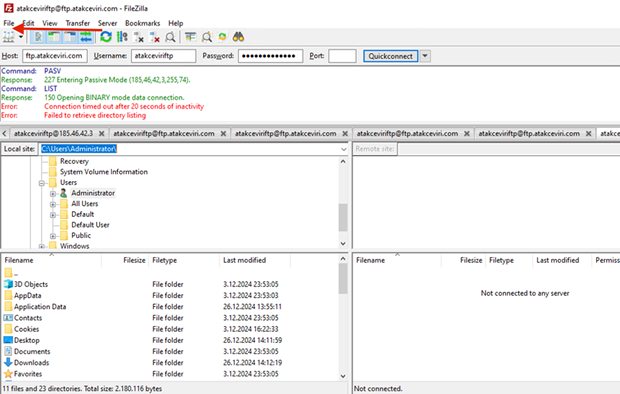
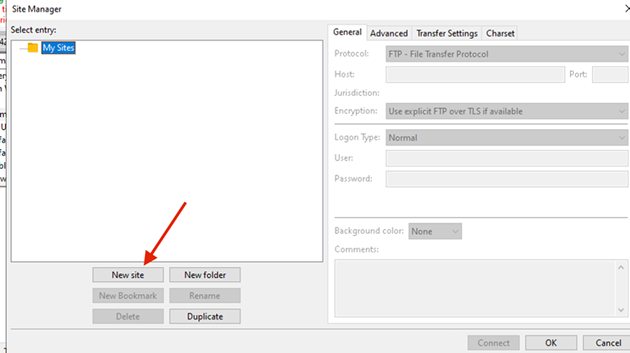
- Open FileZilla and click File.
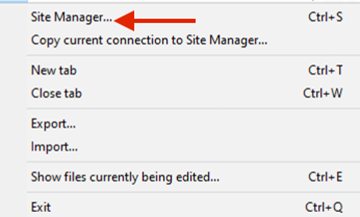
- Click Site Manager.
- Click New site.
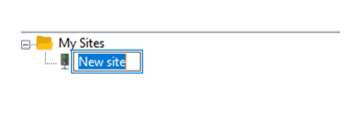
- Give your connection a name, for example your domain name.
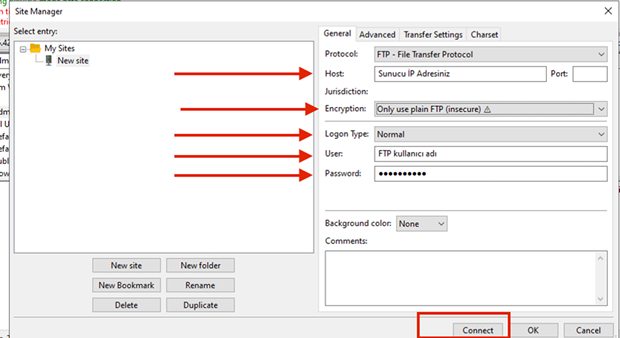
- Fill in the General tab and click Connect:
- Host: Your server's IP address, for example: 185.46.42.3
- Port: Leave empty to use the default port 21
- Encryption: Select "Only use plain FTP (insecure)"
- Logon Type: Normal
- User: Your FTP username
- Password: Your FTP password
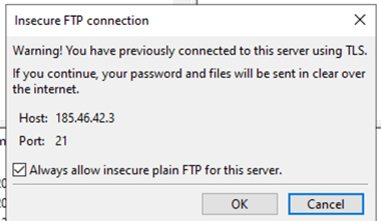
- When FileZilla shows the Insecure FTP connection warning, tick Always allow insecure plain FTP for this server and click OK. You are now connected to FTP. Note: This applies only to Windows-based hosting.
How to fix common FileZilla FTP errors
- Connection timed out or Failed to retrieve directory listing: in Site Manager, open the Transfer Settings tab, switch the transfer mode to Passive or Active and check your firewall.
- Error code 530: the server rejected your login, so retype the username and password without extra spaces.
Plain FTP sends your password unencrypted, so avoid public Wi-Fi and use a long, unique password.
Still unable to connect? Contact our support team with the error lines from the FileZilla message log.