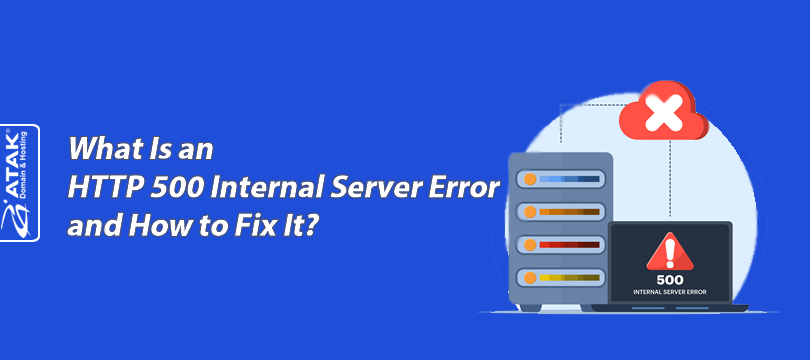
What Is an HTTP 500 Internal Server Error and How to Fix It?
One of the most common errors encountered on websites is the 500 Internal Server Error; it is an HTTP status code that warns you about an error occurring on your website’s server but does not specify the exact source of the problem. This error code appears when the server fails to respond.
The HTTP 500 Internal Server Error may also appear on the screen in different variations: 500 Internal Server Error, HTTP 500 - Internal Server Error, Temporary Error (500), Internal Server Error, HTTP 500 Internal Error, 500 Error, 500. That's an error, HTTP Error 500.
What Causes the HTTP 500 Internal Server Error?
The 500 Internal Server Error can occur due to various factors.
If we list the different situations that cause the HTTP 500 Internal Server Error;
- Coding-related errors in the website software,
- Corruption or misconfiguration of the .htaccess file,
- The server not responding,
- The server becoming unavailable due to excessive requests or attacks such as DDoS/Botnet,
- Issues originating from the root directory of a WordPress-based website,
- Exceeding the PHP memory limit due to PHP files being writable by everyone,
- Invalid configuration of file permissions during manual application installations,
- Incorrect coding or command errors in applications and software,
- Invalid file names,
- Deleted plugins, plugins coded in outdated PHP formats, or plugins that are not updated,
- Incompatible PHP versions or WordPress updates.
How to Fix the HTTP 500 Internal Server Error?
To resolve the HTTP 500 Internal Server Error, you must first identify the source of the problem. To do this, log in to your account via the cPanel control panel. In the panel, click on the Errors/Error Log section under Logs. By reviewing the error logs, you can identify the root cause of the HTTP 500 Internal Server Error and apply the appropriate solution.
Depending on the issue causing the HTTP 500 Internal Server Error, you can find a solution by following the steps below.
- Back up your website: Make sure to back up your website using FTP or WordPress plugins. This way, you can take precautions against potential issues that may arise while resolving the Internal Server Error. (Even under normal circumstances, do not forget to back up your website regularly.)
- Solution for coding errors: One of the most common causes of the 500 Internal Server Error is corruption in the .htaccess (Hypertext Access) file. In this case, you can first try renaming the .htaccess file. To do this, access your WordPress directory using FTP. Locate the .htaccess file in the Home or public_html directory, right-click on it, and select Rename. Change the file name to something else and then visit your website via the browser to check whether the 500 Internal Server Error is resolved. If the issue persists, try recreating the .htaccess file.
To recreate the .htaccess file, first open the WordPress root directory via FileZilla or an FTP client. If you cannot see the .htaccess file, click on Force Showing Hidden Files from the Server menu. Locate the file commonly named httpdocs, right-click it, and select Rename to change the file name to .htaccess.bak. Then delete the file. After this process, to create a new .htaccess file, go to the Settings section in the WordPress admin panel, select Permalinks, scroll to the bottom of the page, and click the Save Changes button. If the 500 Internal Server Error was caused by the .htaccess file, the issue will be resolved after following these steps.
- Solution for PHP memory limit: The PHP memory limit is determined by the hosting provider and WordPress. When you start exceeding the memory limit, WordPress attempts to increase it, but since the maximum limit is defined by the hosting provider, memory limit errors may occur. In this case, you should test whether the 500 Internal Server Error is caused by the PHP memory limit. To do this, open the WordPress root directory via FileZilla or an FTP client. Locate the wp-config.php file, right-click it, and select Download to download it to your computer. Open the file using a text editor such as Notepad++ or Atom, and add the following code just above the PHP opening tag line /* That’s all, stop editing! Happy blogging. */:
define ('WP_MEMORY_LIMIT', '300M');
This will increase your PHP memory limit to 300 MB. (You can change the value 300 to any limit you prefer.) After saving the changes, upload the file back to the WordPress root directory by overwriting the existing wp-config.php file. If you still see the 500 Internal Server Error after refreshing the FTP client and your website, it means the issue is not caused by the PHP memory limit. In this case, try other solutions. Increasing the PHP memory limit via file editing may not be sufficient; you may need to contact your hosting provider to request a limit increase.
- Solution using debugging: You can identify the 500 Internal Server Error by enabling the WordPress debugging mode and writing errors to the debug.log file. To do this, download the wp-config.php file from the WordPress directory to your computer and open it. Add the following code just above the line /* That’s it, stop editing! Happy blogging */, then save the file and upload it back to the WordPress root directory by overwriting the existing file.
define ('WP_DEBUG_LOG', true); define ('WP_DEBUG_DISPLAY'. false); @ini_set ('display_errors', 0);
Refresh your website to reproduce the error. You can then view the cause of the 500 Internal Server Error in the debug.log file located in the wp-content directory.
- Permission check: Check whether the files and folders in the WordPress directory have the correct user permissions.
- Solution for corrupted WordPress files: To fix corrupted WordPress core files, upload fresh versions of the wp-admin and wp-includes folders. Visit wordpress.org and download the latest version of WordPress. From the downloaded files, locate the wp-admin and wp-includes folders and upload them to the WordPress root directory via FTP, overwriting the old versions.
- Solution for plugin errors: If you encounter a 500 Internal Server Error after installing or updating a plugin, you can resolve the issue by disabling or removing the plugin. Log in to the WordPress admin panel, go to the Plugins menu, select Installed Plugins, and deactivate the problematic plugin.
- Solution for theme errors: If you encounter a 500 Internal Server Error after installing a new theme or updating your existing theme, you can resolve the issue by switching to a different theme from the WordPress admin panel.
- Restore a site backup: If you backed up your website before encountering the 500 Internal Server Error, you can resolve the issue by removing all WordPress site files and restoring the backup. If you prefer not to restore the backup manually, you can use the All-in-One WP Migration plugin.
- Contact your hosting provider: If you have tried all the steps above and still cannot resolve the 500 Internal Server Error, you should contact your hosting provider to request technical support.
The 500 Internal Server Error can negatively impact sales performance, especially on e-commerce websites. To avoid such issues, you should frequently monitor your website and resolve disruptions immediately. When setting up your site, you may choose a higher-performance hosting package from the start. Offering domain registration services in 220+ countries with its own domain infrastructure, Turkey’s leading ccTLD domain registration operator Atak Domain allows you to review hosting packages by clicking here and consult our experts for free.