
Domain names and voice search
31.03.2021
Before you can activate an SSL certificate, you need to generate a Certificate Signing Request (CSR) on the server where your website is hosted. The CSR contains your domain and organization details, and the certificate authority uses it to issue an SSL certificate that's tied specifically to your domain.
This guide walks you through CSR generation using Internet Information Services (IIS) on Windows Server. The steps are identical across all IIS versions.
⚠️ The CSR must be generated on the same server where your website is hosted. A CSR created on a different server will cause a mismatch when you try to install the certificate.
Don't have an SSL certificate yet? Browse Atak Domain's SSL options.
| 1 | Open IIS Manager - Search for "IIS" or "inetmgr" and open Internet Information Services (IIS) Manager. |
| 2 | Server Certificates - Click the server name, then double-click "Server Certificates." |
| 3 | Create Certificate Request - In the Actions panel (right side), click "Create Certificate Request..." |
| 4 | Distinguished Name Properties - Enter your domain, company, city, state, and country. No special characters. |
| 5 | Cryptographic Provider - Leave provider as default (Microsoft RSA SChannel). Set Bit length to 2048 or higher. |
| 6 | Save the CSR file - Browse to a save location (Desktop recommended) and click Finish. |
| 7 | View your CSR - Open the saved .txt file with Notepad to copy your CSR code. |
| 8 | Verify the CSR - Paste your code at atakdomain.com/en/csr-decoder to confirm it is valid. |
Click the Windows Start button or the Search bar, type "IIS" or "inetmgr", and click Internet Information Services (IIS) Manager from the results.
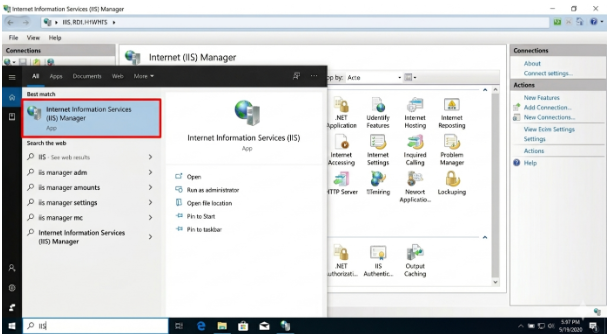
In IIS Manager, click your server name in the left panel. On the main panel, double-click the "Server Certificates" icon.
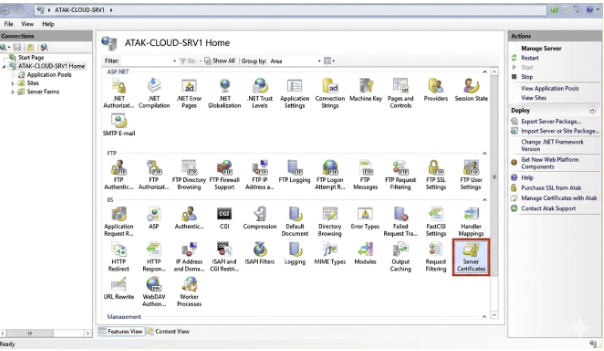
In the Actions panel on the right side of the screen, click "Create Certificate Request..." to launch the CSR wizard.
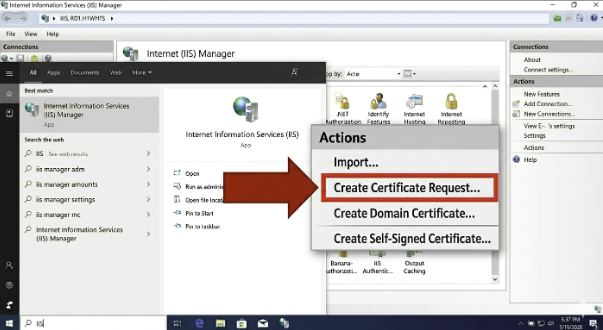
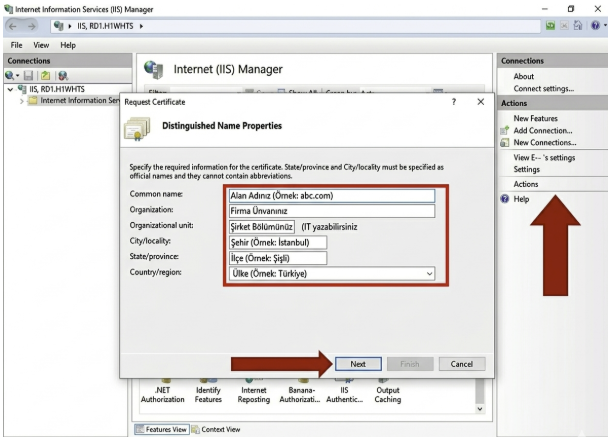
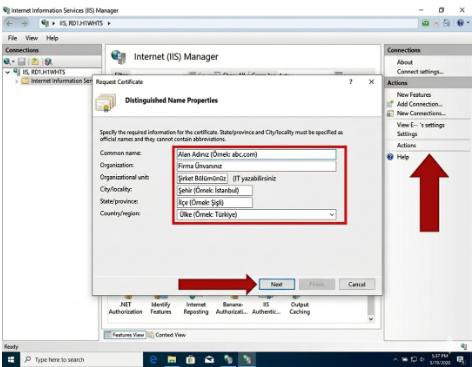
A window titled "Distinguished Name Properties" will appear. Fill in each field carefully:
| Field | Example | Notes |
| Common Name (CN) | yourdomain.com | Exact domain - use *.yourdomain.com for Wildcard SSL |
| Organization (O) | Acme Inc. | Legal company or organization name |
| Org. Unit (OU) | IT | Department (e.g. IT, Web, Marketing) |
| City / Locality (L) | New York | Full city name, no abbreviation |
| State / Province (S) | New York | Full state or province name |
| Country (C) | US | Two-letter ISO country code |
⚠️ Do not use special characters (accents, commas, apostrophes, or quotes) in any of these fields. They will cause the CSR to be rejected.
Once all fields are filled in, click "Next" to continue.
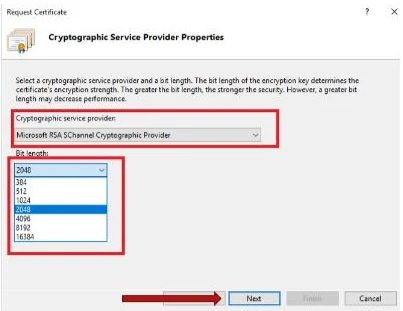
Leave the Cryptographic service provider set to its default: Microsoft RSA SChannel Cryptographic Provider. Do not change this.
For Bit length, the default may show 1024. Change it to 2048 or higher - this is the minimum key size accepted by modern certificate authorities. Then click "Next."
Click the "..." (browse) button to choose where to save your CSR file. We recommend saving it to the Desktop for easy access. Once you've selected a path, click "Finish" to generate the CSR.
Navigate to the save location you selected and open the .txt file with Notepad. Your CSR code will look like this:
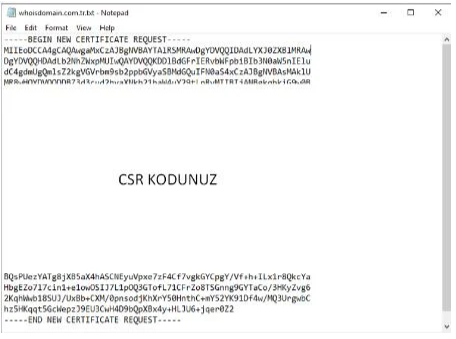
-----BEGIN CERTIFICATE REQUEST-----
MIIByjCCATMCAQAwgYkxCzAJBgNVBAYT...
-----END CERTIFICATE REQUEST-----
ℹ️ Copy the entire block - including the -----BEGIN CERTIFICATE REQUEST----- and -----END CERTIFICATE REQUEST----- lines. Submitting an incomplete CSR will cause the activation to fail.
Before submitting your CSR for SSL activation, verify it is correctly formatted. Paste the full code into the Atak Domain CSR Decoder at atakdomain.com/en/csr-decoder and confirm all the details match what you entered.
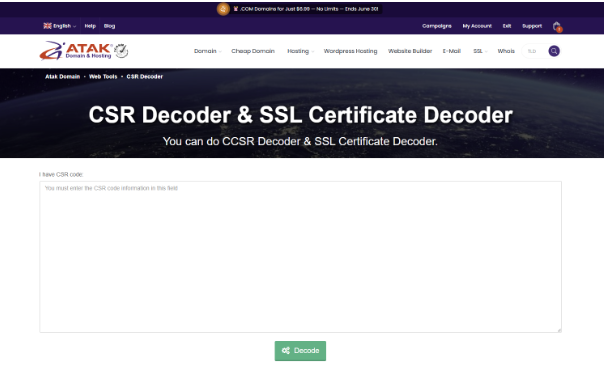
If any detail is wrong, you can generate a new CSR from the same server and start again - the process is identical.
✅ Your CSR is ready. Copy the full code (including dashes) and submit it when activating your SSL certificate.
Once you have your CSR code, follow these steps to complete the SSL setup:
Purchase your SSL certificate from Atak Domain if you haven't already.
Submit the CSR code during the SSL activation and validation process.
Once issued, install the certificate in IIS using the "Complete Certificate Request" option in Server Certificates. See our IIS SSL Installation guide for full instructions.
Verify your installation at https://www.atakdomain.com/en/ssl-checker.
Need an SSL certificate? Atak Domain offers DV, OV, EV and Wildcard SSL with free installation support.
Need an SSL certificate? Atak Domain offers DV, OV, EV and Wildcard SSL with free installation support.
A: A CSR (Certificate Signing Request) is an encrypted block of text generated on your server. It contains your domain name, organization details, and your server's public key. The certificate authority uses it to issue an SSL certificate that's specific to your domain.
A: The CSR generation process creates two keys: a public key (included in the CSR) and a private key (stored on the server). These must match. If you generate the CSR on a different server, the private key won't be present when you try to install the certificate, and the installation will fail.
A: For a Wildcard SSL certificate, enter *.yourdomain.com as the Common Name. This covers the root domain and all first-level subdomains (e.g. www, mail, shop).
A: Copy the full CSR code (including the dashes), verify it at atakdomain.com/en/csr-decoder, then submit it when activating your SSL certificate. Once the certificate is issued, use the IIS SSL Installation guide to complete the setup.
A: Paste the full CSR code into the Atak Domain CSR Decoder at atakdomain.com/en/csr-decoder. It will decode the CSR and display the details you entered, so you can confirm everything is correct before submitting.
A: The CSR Decoder is a free tool that reads an encoded CSR and displays its contents in plain text - domain name, organization, country, and key size. It's useful for catching errors before SSL activation.
A: Generate a new CSR on the same server, following the same steps. There's no limit to how many times you can generate a CSR. Just make sure to use the new CSR code when submitting for activation.
A: The steps in this guide work identically on all versions of IIS that run on Windows Server, including IIS 5.x, 6.x, 7.x, 8.x, 10, and later. The IIS Manager interface is consistent across versions for CSR generation.
CSR generation in IIS takes under five minutes. Open IIS Manager, go to Server Certificates, create a new certificate request, fill in your domain details, set the bit length to 2048 or higher, save the file, and verify the output with the CSR Decoder before submitting.
The most important thing to remember: always generate the CSR on the server where your website is hosted. Doing it on a different machine will prevent the certificate from installing correctly.
✅ Once your CSR is ready, verify it at https://www.atakdomain.com/en/csr-decoder before submitting for SSL activation.
Ready to activate your SSL? Browse Atak Domain's SSL certificate options.
Ready to activate your SSL? Browse Atak Domain's SSL certificate options.