
From URL to Brand Asset: The Strategic Role of Domain Names in Modern Marketing
10.04.2026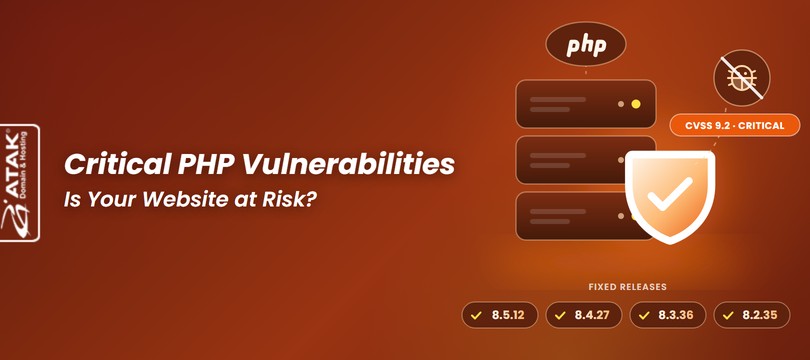
On 21 October 2026, the PHP Security Team released fixes for two critical vulnerabilities in PHP itself: CVE-2026-109618 and CVE-2026-109619. Both are rated 9.2 on CVSS v4.0, and both can allow an attacker to run code on a server without logging in. The fixed releases are PHP 8.5.12, 8.4.27, 8.3.36 and 8.2.35.
If your site runs on PHP – and that includes WordPress, WooCommerce, Drupal, Magento and Laravel – the first job is simple: find out which PHP version your site uses and confirm that it includes these fixes. The rest of this guide shows you how, whether you're on shared hosting or running your own server.
The 60-second check
If you answered “not sure” to any of these, read on. Each section below closes one of those gaps.

They are two separate memory-handling flaws in the PHP engine that can, under the right conditions, let an unauthenticated attacker execute code on the server. The PHP Security Team gave advance notice on 20 October and shipped the fixes on 21 October 2026 at 14:00 UTC. Some security vendors refer to the pair as “PHP2Shell”.
| CVE | Official description (summary) | In plain English |
|---|---|---|
| CVE-2026-109618 (GHSA-w8hw-w9fx-j79w) | Out-of-memory handling can interrupt PHP while internal request data is only partly initialised; request clean-up may then treat that invalid data as valid. | When the server runs short of memory, PHP can mistake a half-finished job for a finished one – and that confusion can be abused. |
| CVE-2026-109619 (GHSA-6wmf-4rv5-p3rp) | Request-owned internal state can outlive the memory behind it; a later request on the same worker may use that stale state. | Leftovers from one visitor's request can leak into the next request handled by the same PHP process. |
Three terms worth knowing: a CVE is the public ID assigned to a specific vulnerability. CVSS scores severity from 0 to 10, and anything from 9.0 up counts as critical. Remote code execution (RCE) means an attacker can run their own code on your server from anywhere on the internet.
Serious enough to patch today. According to the PHP Security Team, every PHP installation that serves web requests is in scope, including PHP-FPM, Apache mod_php, php-cgi, FrankenPHP and LiteSpeed. The highest risk is on mod_php, where the team demonstrated an exploit in which a single unauthenticated request triggers the attack before any application code runs.
If an attacker succeeds, the possible consequences include:
Here is where things stood on 23 October 2026. Several public proof-of-concept exploits exist, though Rapid7 found that each one works only against a specific combination of operating system, PHP version and web server. Rapid7 expects exploitation in the wild, although its own tests had produced a working exploit only under narrow lab conditions. The Canadian Centre for Cyber Security had identified no active exploitation, while warning that this “can change quickly”. Germany's BSI issued an urgent warning and expects attack waves. In short: don't wait for confirmed mass exploitation before you act.
None of this means every PHP site has been compromised. Whether an attack works depends on your PHP version, server setup and patch status.
All four officially supported PHP branches were affected, and each now has a fixed release. Your site should be on one of these versions – or on your provider's package that contains the same fixes.
| PHP branch | Fixed release | Support status (23 Oct 2026) | Security support ends |
|---|---|---|---|
| PHP 8.5 | 8.5.12 | Active support | 31 December 2029 |
| PHP 8.4 | 8.4.27 | Active support | 31 December 2028 |
| PHP 8.3 | 8.3.36 | Security fixes only | 31 December 2027 |
| PHP 8.2 | 8.2.35 | Security fixes only | 31 December 2026 |
| PHP 8.1 and older | No update from the PHP project | End of life | — |
PHP 8.1 and older no longer receive updates from the PHP project. Because of the severity, the security team published minimal source backports for PHP 7.4, 8.0 and 8.1 for people who build PHP themselves, and many Linux distributions and long-term-support vendors ship their own patched packages. Those patches close these two holes only. They don't bring an old branch back into support.
A common trap: when a Linux distribution backports a fix, the version number often stays the same. A server can report “8.3.x” and be patched, or not. Check your package changelog or your provider's announcement rather than relying on the number alone.
Don't forget bundled PHP. Docker images, appliances and some commercial products ship their own copy of PHP. Patching the host doesn't patch a container image – rebuild and redeploy it from an updated base image.
On 23 October 2026 the PHP Security Team published an informational advisory recommending session.upload_progress.enabled=0 until the next regular bugfix release. The setting was already listed as a mitigation for CVE-2026-109619, so if you applied it then, simply leave it in place. The new issue (CVE-2026-115560) only arises with an unusual combination of configuration and application code, which is why it will be fixed in the normal release cycle.
Not because of a flaw in your CMS or framework – but yes, if the PHP runtime underneath it hasn't been patched. Updating WordPress core, your theme or your plugins does not fix this vulnerability. The same applies to Drupal modules, Magento extensions and Composer packages in a Laravel app.
Think of PHP as the foundation of a house and your CMS as everything built on top of it. A fresh coat of paint upstairs won't fix a crack in the foundation. That's why there are two separate to-do lists:
| Task | What gets updated | Who usually does it |
|---|---|---|
| PHP security patch | The PHP runtime on the server | Hosting provider (shared/managed) or server administrator (VPS) |
| CMS core update | WordPress, Drupal, Magento, etc. | Site owner (or automatic updates, where enabled) |
| Plugins, themes, extensions, packages | Third-party components | Site owner, developer or agency |
The quickest route is your hosting control panel or your CMS dashboard. Menu names can differ slightly depending on your provider and panel version.
Seeing the version is not the same as confirming the patch. “PHP 8.3” in a panel tells you the branch, not the exact release. 8.3.36 or later includes the fix; on distribution packages the number may not change. And if PHP workers weren't restarted after the update, the old code keeps running in memory. If in doubt, ask your provider directly.
On shared hosting you can usually change your PHP version in a few clicks: MultiPHP Manager in cPanel, or the domain's PHP settings in Plesk. First, it helps to separate two things that often get mixed up:
Which branch should you choose? The newest supported branch your host offers. As of 23 October 2026 the supported branches are 8.2, 8.3, 8.4 and 8.5. Because PHP 8.2 will reach end of life on 31 December 2026, 8.3 or later buys you more time. Coming from 8.1 or older, you don't need to step through each branch in between – what matters is that your plugins and theme support the target version.
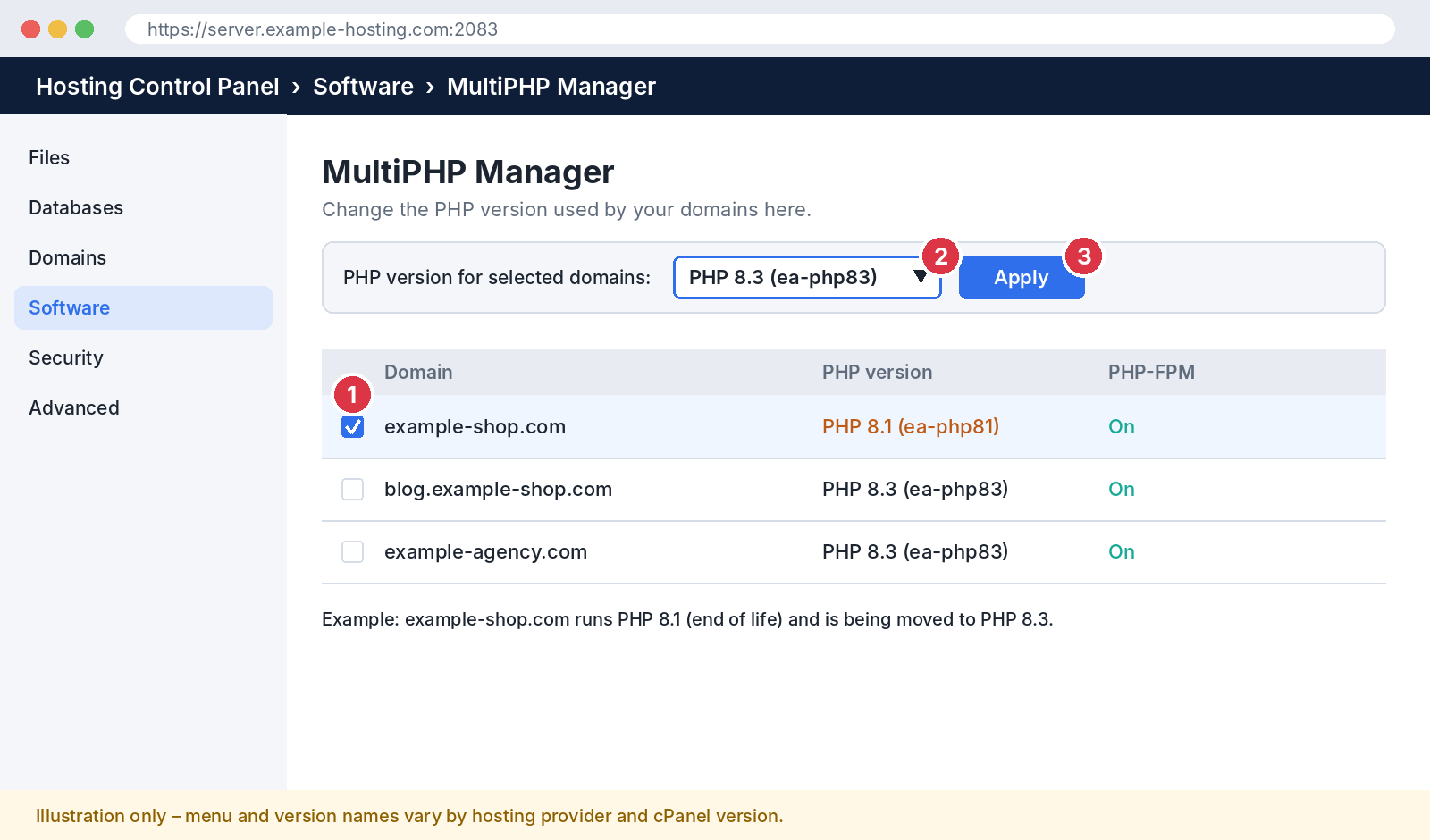
Some servers show Select PHP Version (the CloudLinux PHP Selector) instead. The idea is the same: pick a version and save. PHP extensions are configured per version there, so after switching, check that the extensions your site needs (for example intl, imagick or zip) are enabled on the new version too.
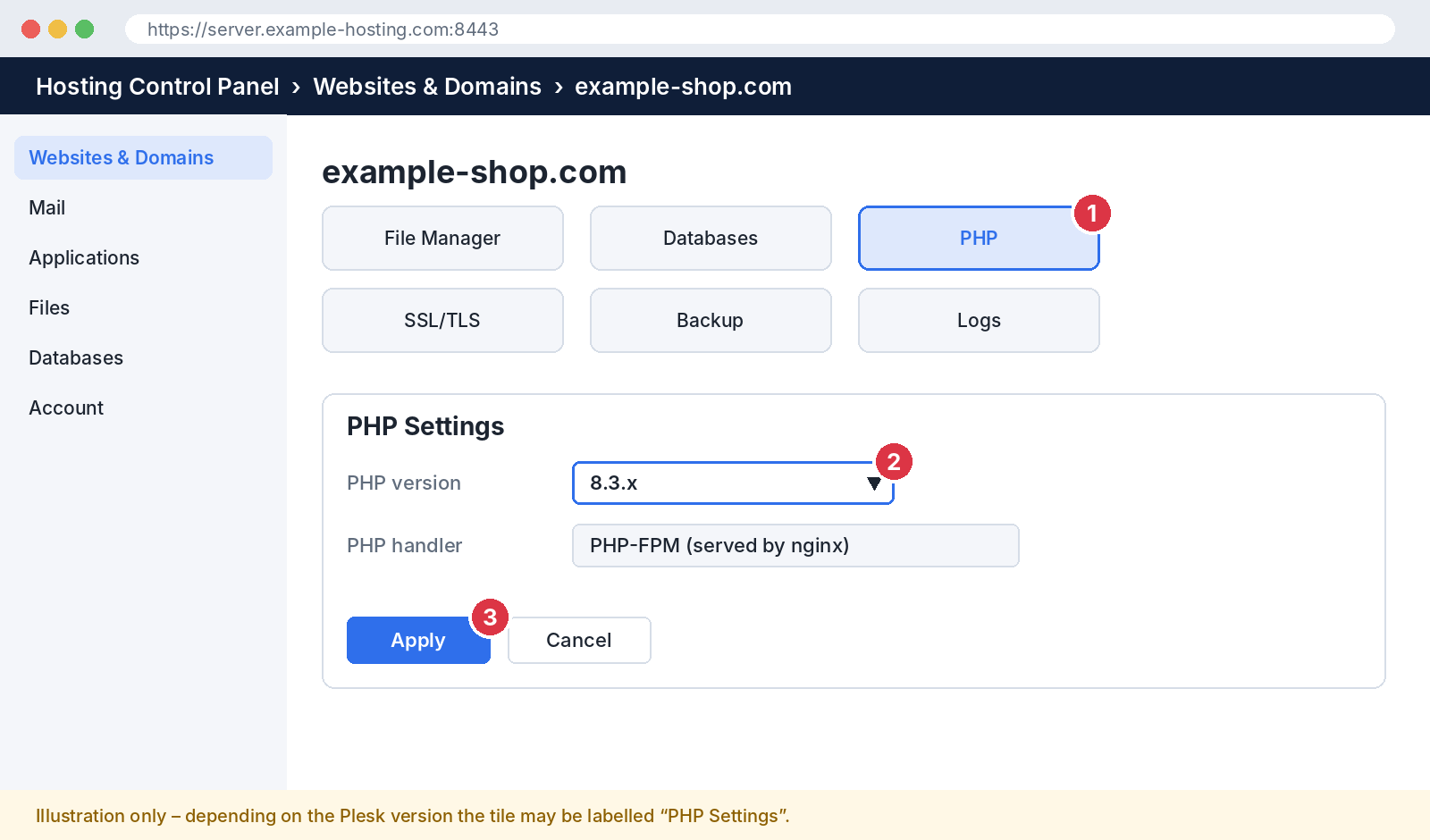
Check that the change actually reached your site. If you use a caching plugin, clear the cache first.
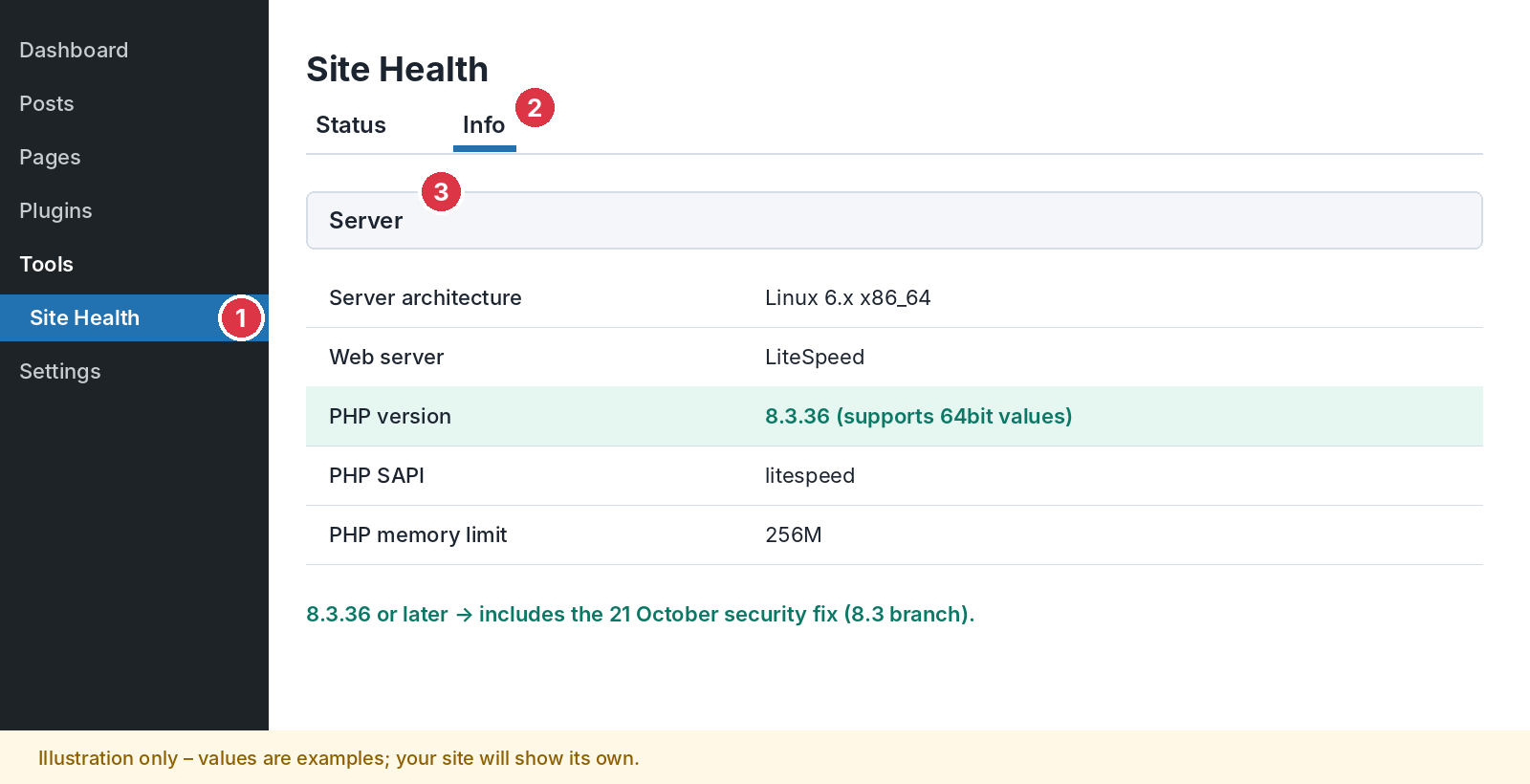
On your own server you update PHP through the operating system's package manager. The commands below are examples; package names depend on your distribution and the PHP repository you use.
# See the current version (CLI)
php -v

# Debian / Ubuntu example – security update within the same branch
sudo apt update
sudo apt install --only-upgrade php8.3-fpm php8.3-cli php8.3-common
sudo systemctl restart php8.3-fpm

# RHEL / AlmaLinux / Rocky example
sudo dnf upgrade "php*"
sudo systemctl restart php-fpm

# Using Apache mod_php? Restart the web server too
sudo systemctl restart apache2   # on RHEL-based systems: httpd
Don't skip the restart: if old PHP workers stay in memory, the patch isn't live. Confirm that your repository really ships the 21 October fixes by checking the package changelog (on Debian/Ubuntu, for example, apt changelog php8.3-fpm). Switching branches means installing the new branch alongside the old one and pointing your web server or FPM pool at it; the exact steps vary by distribution.
A white screen or a “500 Internal Server Error” after an upgrade is fixable. Your first instinct shouldn't be to roll back to the old PHP version – if that version isn't patched against these vulnerabilities, you'd be reopening the door. Work through this order instead:
If you really must roll back PHP: treat it as a last resort and keep it as short as possible. Ask your provider to confirm that the version you're returning to includes the 21 October fixes (or a vendor backport). If it doesn't, put the site into maintenance mode or restrict admin access by IP until the problem is fixed. Staying on an end-of-life version only postpones the risk.
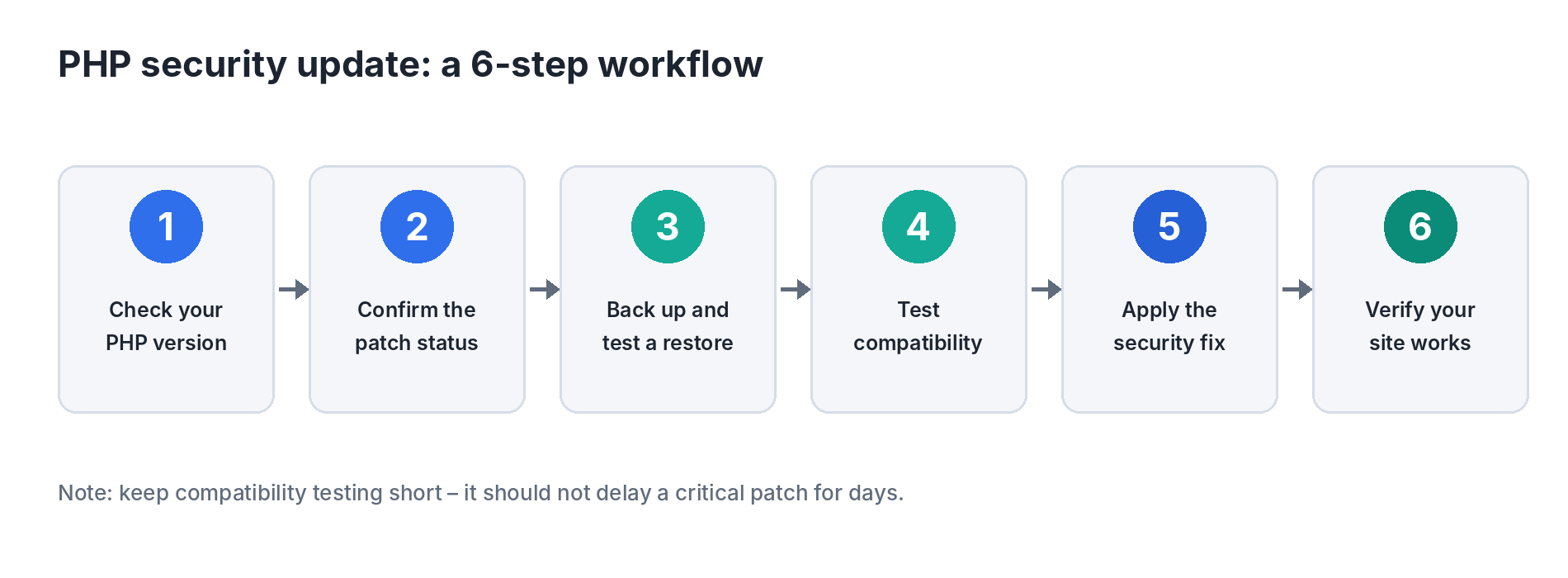
Updating PHP to a fixed release is the only complete fix. The PHP Security Team is explicit that temporary measures do not make an installation safe. This order cuts the risk quickly while keeping the chance of breaking your site low:
A security update within the same branch doesn't need weeks of testing. Compatibility checks should never become a reason to leave a critical patch uninstalled for days.
If you run your own server and genuinely can't update for a few hours, the PHP Security Team lists measures that narrow specific attack paths. They do not make the installation safe and are not a substitute for updating:
| Check | What to look for |
|---|---|
| 1. Home page and key pages | Does the page load? Any blank screen or “500 Internal Server Error”? Images and menus intact? |
| 2. Admin area | Can you log in to /wp-admin or your app's backend and save changes? |
| 3. Contact forms | Send a test message and confirm the email actually arrives. |
| 4. Checkout | Add to basket, calculate shipping and place a test order using your payment provider's test mode. |
| 5. Database features | Search, filters and customer logins – anything that reads or writes data. |
| 6. Error logs | Any new “Fatal error” or “Deprecated” lines in the PHP error log or debug.log? |
Patching closes the door, but it doesn't remove anyone who may already be inside. If you notice unfamiliar files, unknown admin users, spam pages or redirects, treat it as an incident:
Short answer: on shared and managed hosting, your provider normally patches PHP; on an unmanaged VPS or dedicated server, it's your job. Your CMS, plugins and content remain largely your responsibility in every model.
| Task | Shared hosting | Managed hosting | Unmanaged VPS / dedicated |
|---|---|---|---|
| Security patch for the PHP runtime | Provider | Provider | You |
| Choosing the PHP branch (e.g. 8.2 → 8.4) | You (in the panel) | Shared | You |
| CMS, theme and plugin updates | You | Shared / depends on plan | You |
| Server configuration (php.ini, FPM, web server) | Provider | Provider | You |
| Backups and restore testing | Shared | Shared | You |
| Testing the site after updates | You | Shared | You |
This is a typical split; your contract and plan define the exact scope. If you're unsure, ask your provider:
An end-of-life PHP version receives no official fixes for newly discovered vulnerabilities. Even if it gets a one-off patch today, the next flaw may never be fixed.
PHP's support model is straightforward: each branch gets two years of active support, then two years of critical security fixes only, and then it reaches end of life. PHP 8.2 will reach end of life on 31 December 2026. If you're on 8.2.35 you're protected against these two vulnerabilities, but you should plan a move to 8.3 or later within the next two months.
Backports from providers or distributions are a valuable stopgap. They fix specific vulnerabilities, though – not the other known issues, missing performance improvements or growing incompatibility with modern plugins. The lasting fix is a supported branch.
Incidents like this show that a host's security processes matter as much as price and disk space. When comparing providers, ask:
| Criterion | What to ask |
|---|---|
| Supported PHP versions | Are currently supported branches (8.2–8.5 today) available, and can you switch versions yourself? |
| Patch process | How quickly are critical patches applied on shared and managed platforms? |
| Backup and recovery | How often are backups taken, how long are they kept, and how do restores work? |
| Technical support | Which channel can you use during an incident, and how fast is the response? |
| Compatibility testing | Is there a staging environment or another way to test a PHP switch? |
| Transparent communication | Does the host publish a status page, email or blog update during security incidents? |
| SSL and extra layers | Are SSL, a WAF and malware scanning included? (Helpful – but no substitute for a PHP patch.) |
You can weigh these criteria against Atak Domain's web hosting plans. The details below are taken from the features listed on the product page; they are not a statement about this specific PHP incident.
| What you need | Listed on the product page |
|---|---|
| Choose and change your own PHP version | cPanel or Plesk control panel option on every plan |
| A backup before you upgrade, and a way back | Free daily automatic backups, with the last 7 days kept |
| An extra security layer | Imunify360 malware scanning and web application firewall – complements, never replaces, a PHP patch |
| Help when something goes wrong | 24/7 support tickets |
| Moving from another host safely | Free website and hosting migration |
| One site, a few sites, or many | Starter (1 site), Expert (3 sites), Expert Plus and Expert Deluxe (unlimited sites) |
| High traffic or online shops | Expert Deluxe, with more CPU and RAM |
Before choosing a plan, note which PHP version and extensions your site needs, then compare hosting options for your site. Asking support which PHP versions are available before you buy is the surest way to a smooth move.
If your site runs on PHP (WordPress, WooCommerce, Drupal, Magento, Laravel and so on) and the server's PHP doesn't yet include the 21 October 2026 fixes, it's in scope. PHP 8.5.12, 8.4.27, 8.3.36, 8.2.35 or a patched vendor package closes both holes. Being in scope doesn't mean your site has been hacked.
Yes. The PHP Security Team urges every user to update immediately. A security update within the same branch (for example 8.3.35 to 8.3.36) rarely causes compatibility issues. On shared hosting your provider applies it – your job is to confirm it's done.
No. Updating WordPress core, themes and plugins doesn't patch the PHP runtime. PHP has to be updated separately on the server. They are different layers, and each needs its own updates.
On shared and managed hosting, usually yes – though timing and scope vary between providers. On an unmanaged VPS or dedicated server, it's up to you. The safest approach is to get written confirmation from your host that the patch is in place.
A security update within the same branch rarely breaks anything. Changing branch (for example 8.1 to 8.3) can trip up old plugins or themes. Back up first, test on staging if you can, and run the post-update checklist.
PHP 8.2.35 fixes these two vulnerabilities. However, PHP 8.2 will reach end of life on 31 December 2026, after which new vulnerabilities won't be fixed. Plan your move to 8.3 or later in the coming weeks.
No. SSL encrypts traffic between the browser and your server; it doesn't fix a flaw in the PHP running on that server. Malicious requests can travel over an encrypted connection too. A WAF or malware scanner can reduce risk but can't replace the update.
Usually not. The priority is to update PHP and confirm the fix. If you run a critical server you can't patch yet – especially one using mod_php – restricting access until it's updated is worth considering. That's a call based on your own risk assessment.
Update PHP from your distribution's security repository (or build the 21 October release from source), restart PHP-FPM and the web server, then confirm with php -v and the package changelog. If several PHP versions or container images are in use, check each one.
CVE-2026-109618 and CVE-2026-109619 are rare vulnerabilities in PHP itself that can lead to remote code execution. The good news: fixes are out for every supported branch.
Three things to do today: find out your PHP version, confirm the fix is installed, and make sure you have a recent backup. If you're still on PHP 8.1 or older, this is also the right moment to plan your move to a supported branch.
Treating security as routine maintenance rather than a one-off emergency is the least stressful approach in the long run. A supported PHP version, regular backups and support you can actually reach are its three building blocks.
Planning a move to new hosting or starting a new project? Take a look at Atak Domain hosting. With a choice of cPanel or Plesk, free daily backups, the Imunify360 security layer and free migration, you can move your existing site without losing data. Just tell our support team which PHP version your site uses and how much traffic you expect, and they'll help you find the right plan.