
What Is a Website Domain Name?
27.04.2021
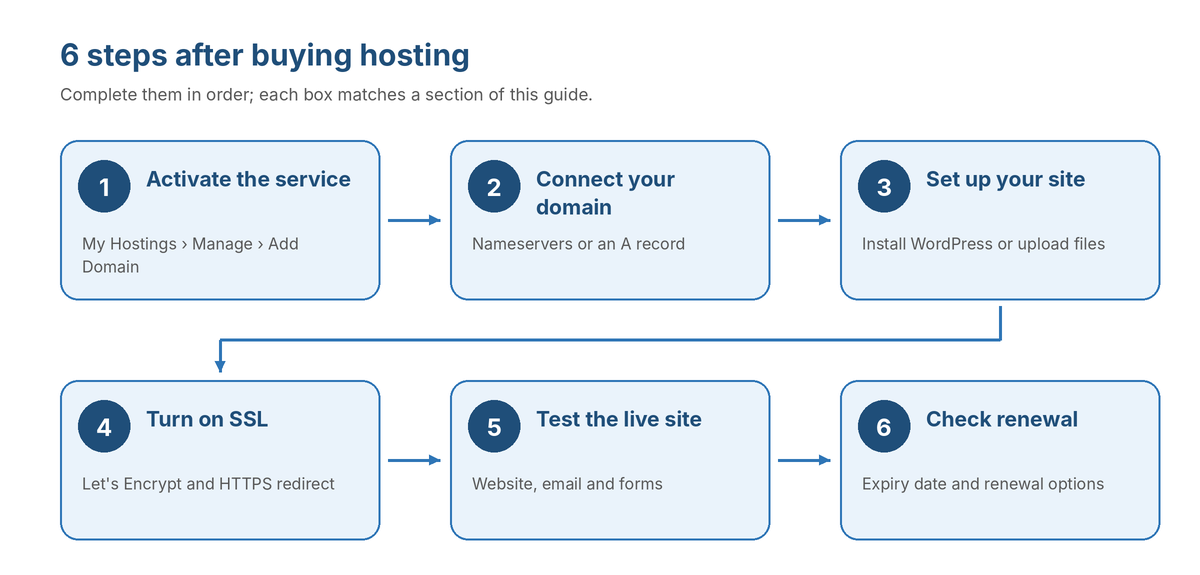
After buying hosting, work through six steps: confirm the service is active, connect your domain, install WordPress or upload your site, turn on SSL, test the live site and note your renewal date. Most people finish the hands-on part in under an hour; DNS changes can then take a few hours to reach everyone.
If you chose a domain during checkout, it may already be added to your hosting account. Check this in My Hostings. Your site will only load once the domain's DNS also points to your hosting server, which you'll confirm in step 2.

| Step | What to do | Where |
|---|---|---|
| 1 | Confirm the service is active and has a domain | My Hostings › Manage |
| 2 | Point your domain to the hosting with nameservers or an A record | Your domain registrar or Cloudflare |
| 3 | Install WordPress or upload your website files | cPanel or Plesk |
| 4 | Turn on SSL and redirect HTTP to HTTPS | cPanel or Plesk |
| 5 | Test the site, email and forms | Your browser and a DNS lookup tool |
| 6 | Check the expiry date and renewal options | My Hostings |
Ready to start?
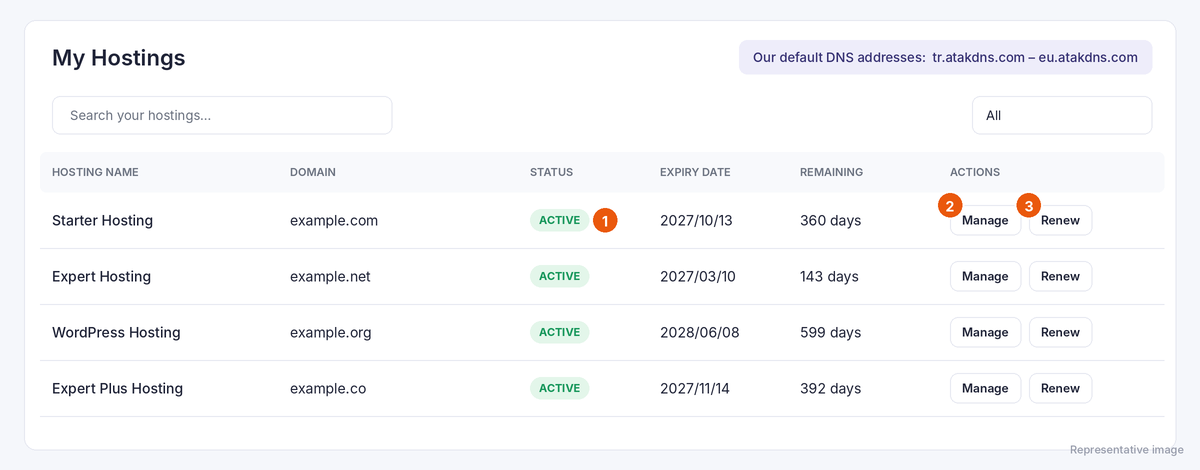
Your hosting status lives in the My Hostings section of the Atak Domain customer panel. Once the status shows ACTIVE and a domain is attached, you can move on to the control panel (cPanel or Plesk).
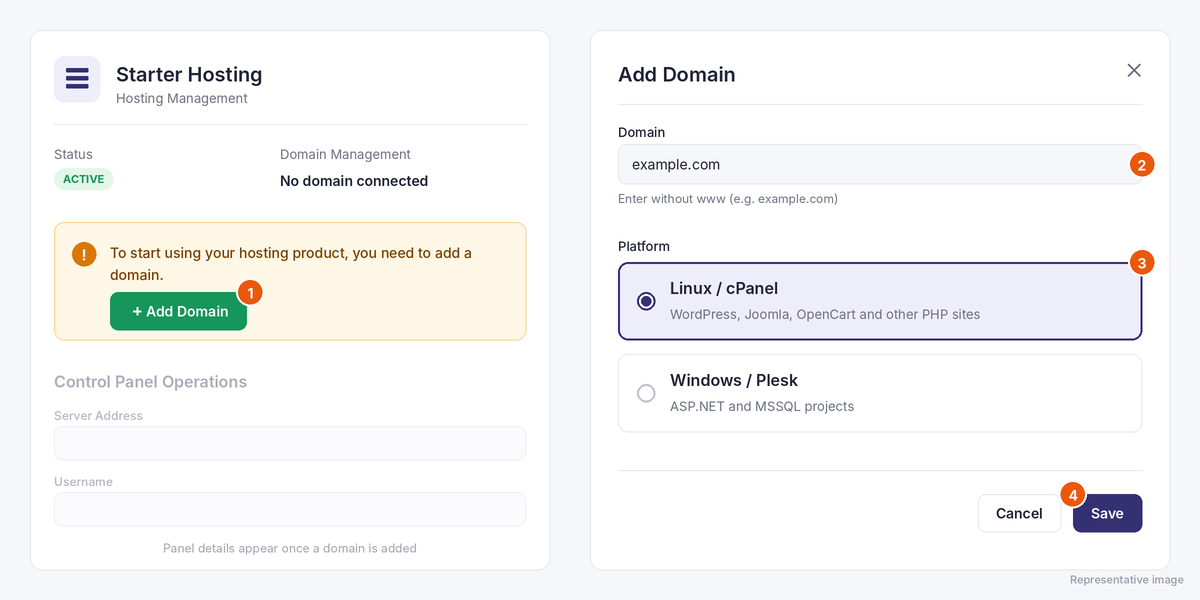
If you didn't pick a domain at checkout, the management screen shows: “To start using your hosting product, you must add a domain name.” Click Add Domain, type your domain without www (for example, example.com), choose a platform and click Save.
| Platform | Best for |
|---|---|
| Linux / cPanel | WordPress, Joomla, OpenCart, other PHP sites and most static websites |
| Windows / Plesk | ASP.NET and MSSQL projects |
Pick the platform that matches your site's software. Not sure? Ask our support team before you save.
How to tell your hosting is ready: on the management screen you should see:
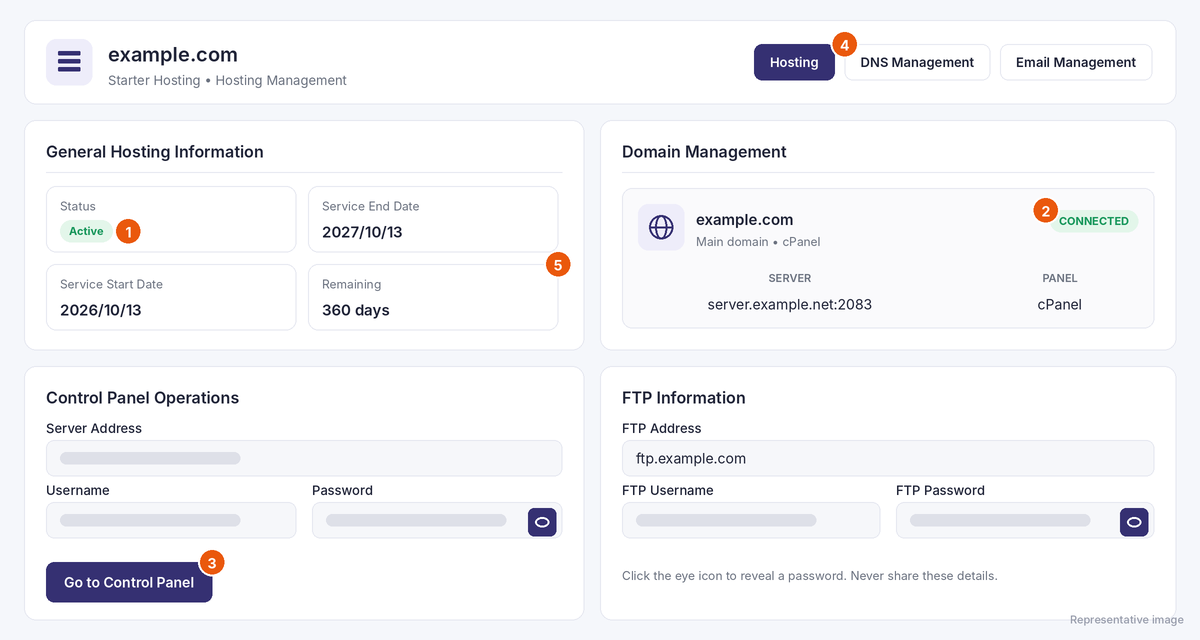
Click the eye icon to reveal a password, and never share these details. Plan not in the list? Check that your order and payment have been approved. If it's still missing, open a support ticket.
For screen-by-screen walkthroughs, see How to Activate Linux cPanel Hosting and How to Activate Windows Plesk Hosting.
For your site to load when someone types your domain, the domain's DNS has to point to your hosting server. There are two ways to do that: switch the domain's nameservers to Atak Domain, or add an A record at your current DNS provider.
| Your situation | Use |
|---|---|
| Domain and hosting are both at Atak Domain | Scenario A: check the nameservers |
| Domain is registered elsewhere | Scenario B: change the nameservers, or Scenario D |
| Your DNS runs on Cloudflare | Scenario C: A and CNAME records in Cloudflare |
| Email is hosted elsewhere and you don't want to touch it | Scenario D: A and CNAME records only |
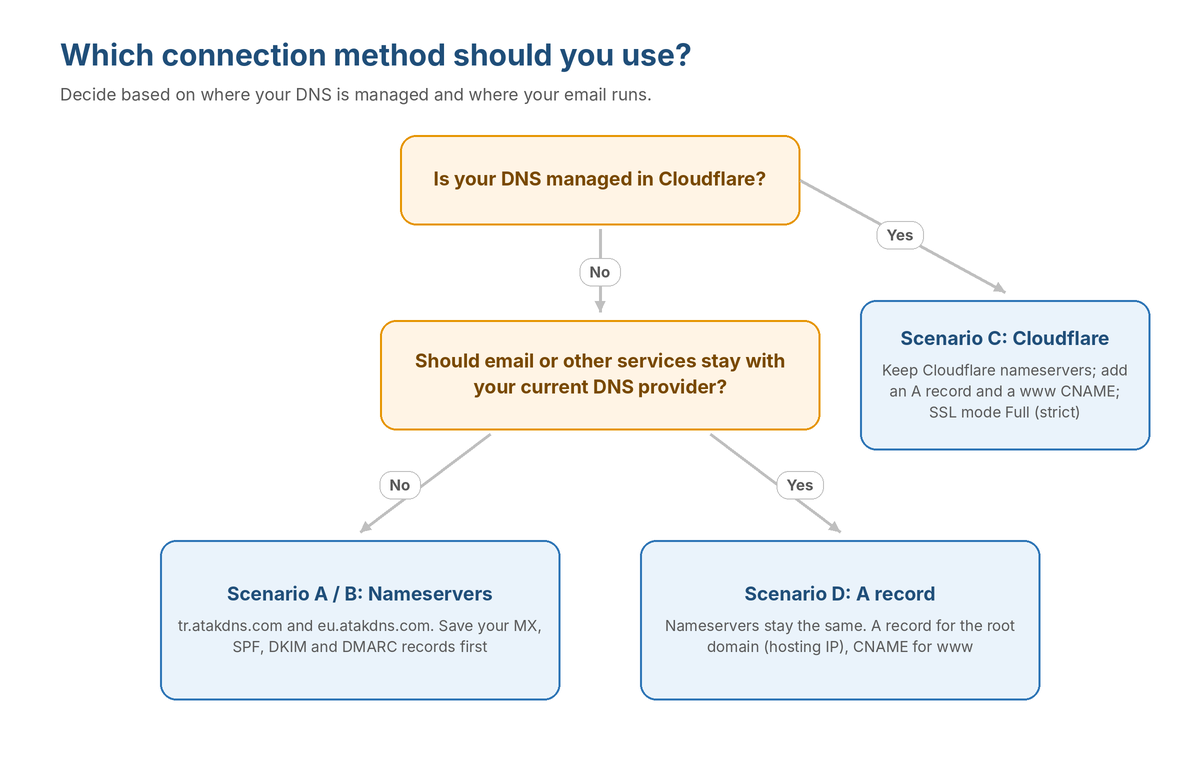
Protect your email first
Atak Domain's default nameservers are tr.atakdns.com and eu.atakdns.com. You'll also see them at the top of the My Hostings page.
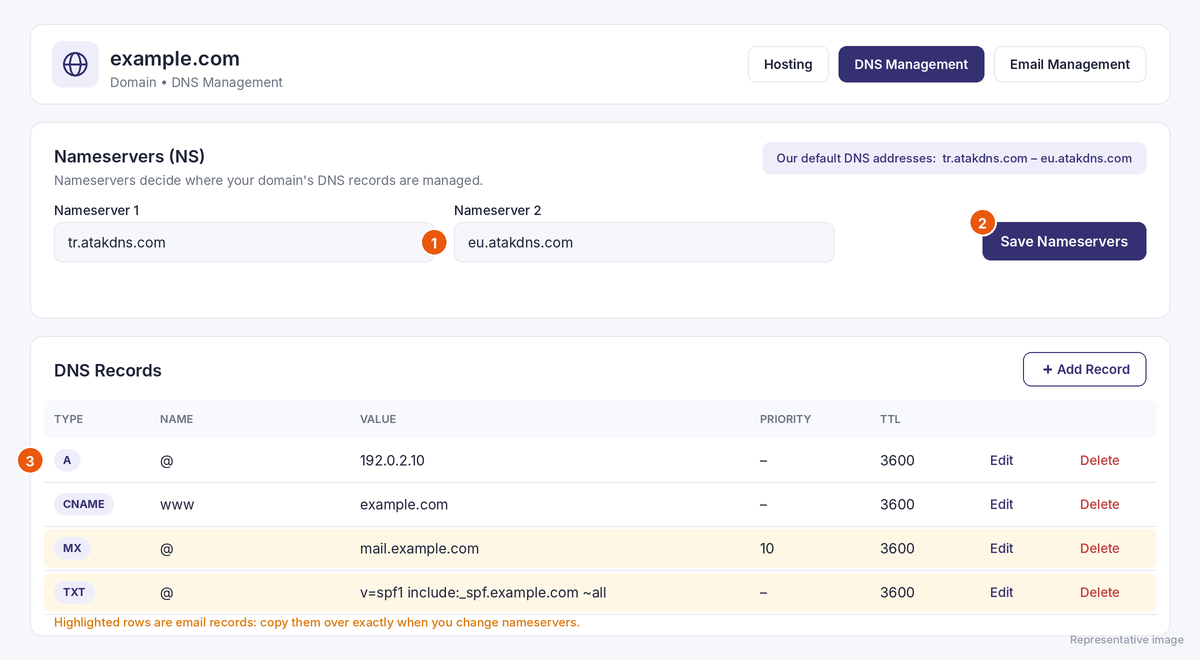
More detail: How to Manage Domain DNS.
Sign in to the company where you registered the domain and change its nameservers to tr.atakdns.com and eu.atakdns.com. If your email runs elsewhere (Google Workspace, Microsoft 365 and so on), add that service's MX and TXT records in Atak Domain's DNS management screen. Prefer not to touch the nameservers? Use Scenario D.
You don't need to transfer the domain to connect it. If you'd like to keep everything in one account, see how to transfer a domain to Atak Domain.
Leave your nameservers on Cloudflare and connect the site from the Cloudflare DNS dashboard:
If the hosting panel can't issue a certificate, switch the proxy off (grey cloud), issue the certificate, then turn the proxy back on.
Want email and other services to keep running at your current DNS provider? Update only the website records:
| Name / Host | Type | Value |
|---|---|---|
| example.com (or @) | A | Your hosting server's IP address |
| www | CNAME | example.com |
Your MX and other email records stay as they are, so email usually keeps working. The exception: if your MX record points to a hostname you're changing (for example, directly to example.com), mail will follow it to the new server. Check where your MX record points before you edit anything. Step-by-step help: Adding an A Record and Adding a CNAME Record.
Most DNS changes show up across networks within 1–4 hours. Treat that as an estimate, not a promise: it depends on each record's TTL, your internet provider's DNS cache and the kind of change. Nameserver changes can take up to 24–48 hours. For .tr domains, DNS updates are processed at set times; see DNS update cycles for .tr domains.
How to tell the connection works: on the hosting management screen your domain shows CONNECTED under Domain Management. Confirm it publicly too: a DNS lookup should return your hosting IP for the A record, or tr.atakdns.com and eu.atakdns.com for the NS records.
With the domain connected, choose one route: install WordPress, or upload a site you already have. Open your control panel with the Go to Control Panel button on the hosting management screen.
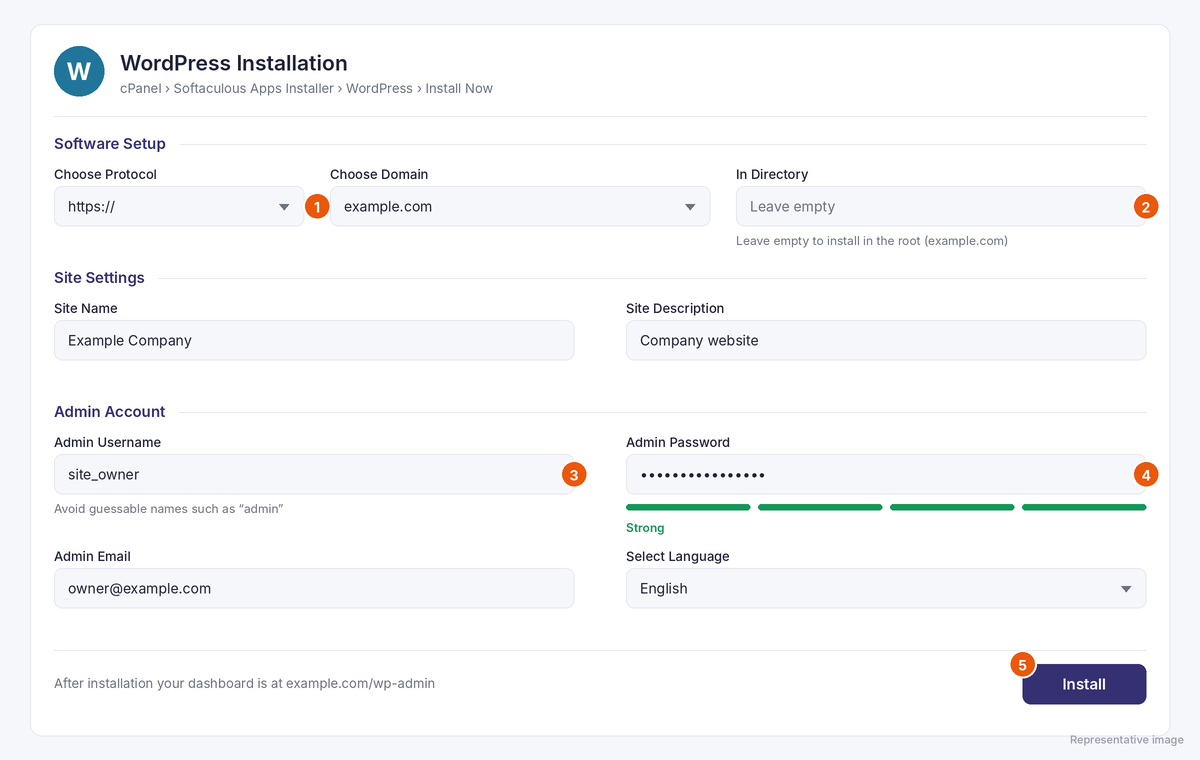
How to tell it worked: example.com/wp-admin opens the WordPress login screen and your details let you in. Then check under Settings › General that both the WordPress Address and Site Address start with https://.
Need more detail? See our WordPress installation guide. Moving an existing WordPress site? Use Importing a WordPress Site into Softaculous. If your current plan later feels tight for WordPress, you can compare our WordPress hosting plans.
Related guides: Transferring a website via FTP with FileZilla · Connecting an FTP account in Plesk
Moving from another host?
An SSL certificate encrypts the connection between your visitors' browsers and your server, so your site opens over https://. Free certificates are issued only after the domain is confirmed to point at your server, so do this after step 2.
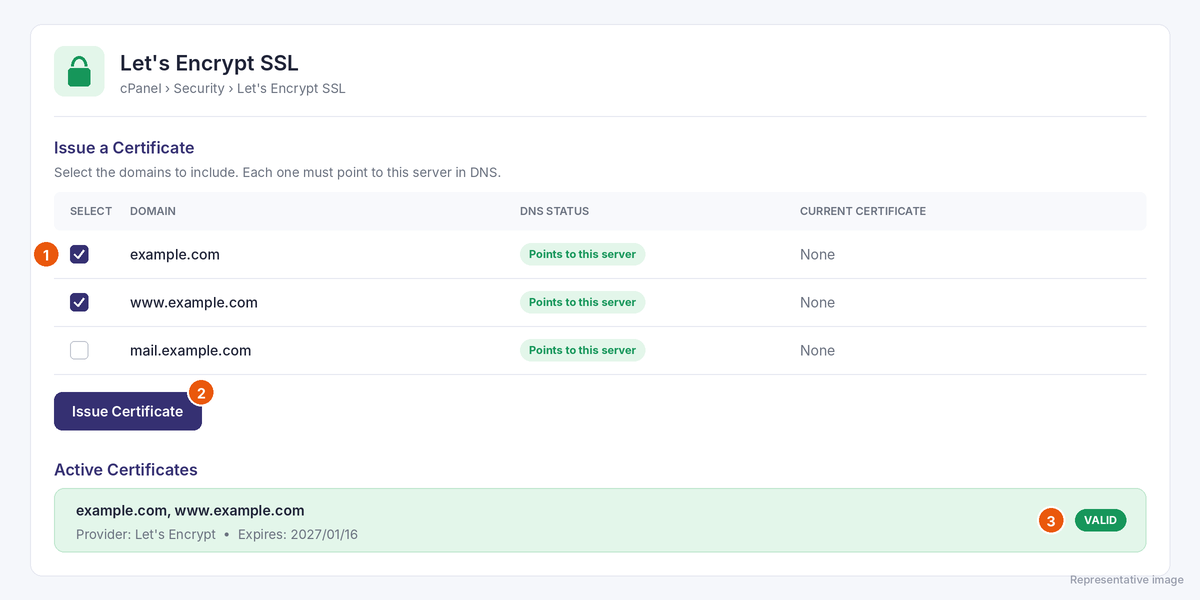
How to tell SSL works: both https://example.com and https://www.example.com open without warnings, and typing http:// takes you to HTTPS automatically. If the browser says the connection isn't private, the certificate may not be issued yet, may have expired, or may not cover both the www and non-www addresses.
Before you call it done, open the site the way a visitor would and run through this list:
Still seeing the old site? Your browser or computer may be holding on to old DNS data. Try a different network, such as mobile data, or clear your browser and system DNS cache.
If your hosting plan expires, your website and email can stop working. A quick check now saves you from surprises later.
If your site grows and needs more resources, compare current plans on the hosting prices page.
When a new site won't load, the cause is usually a missing domain connection, a wrong DNS record or files in the wrong folder. Here are the most common cases and fixes.
Still stuck? Open a support ticket and include your domain, the exact error message and what you've already tried. It speeds things up.
In the customer panel, go to My Hostings: the status column shows ACTIVE. On the management screen you'll also see Status: Active and your domain marked CONNECTED.
If you picked a domain at checkout, it may already be added to your hosting. If not, you can add it right away with Add Domain under My Hostings › Manage. Your site then loads once the DNS change is visible, usually within a few hours, though TTL values and DNS caching can stretch this to 24–48 hours.
No. Your domain can stay with its current registrar. Either point its nameservers to tr.atakdns.com and eu.atakdns.com, or point its A record at your hosting IP.
Change nameservers if you want to manage all DNS in one place. If your email or other services rely on your current DNS provider, or you use Cloudflare, updating only the A and CNAME records is the safer choice.
If you only update the website's A and CNAME records, email usually isn't affected, unless your MX record depends on one of the records you change, so check it first. If you change nameservers, recreate your MX, SPF, DKIM and DMARC records in the new DNS zone or incoming mail may stop.
WordPress Hosting plans include automatic WordPress setup. On other Linux/cPanel plans, you can install WordPress in a few clicks with Softaculous.
Yes. Free website migration is listed in the features of our Web Hosting and WordPress Hosting plans. Confirm what your plan covers with our support team and start the move with a support ticket.
Your website and email can stop working. Keep an eye on the remaining days in My Hostings and renew before the end date with the Renew button or the Renewal Center.
Finished the setup?
Don't have hosting yet? You can compare our hosting plans to find one that fits your site.